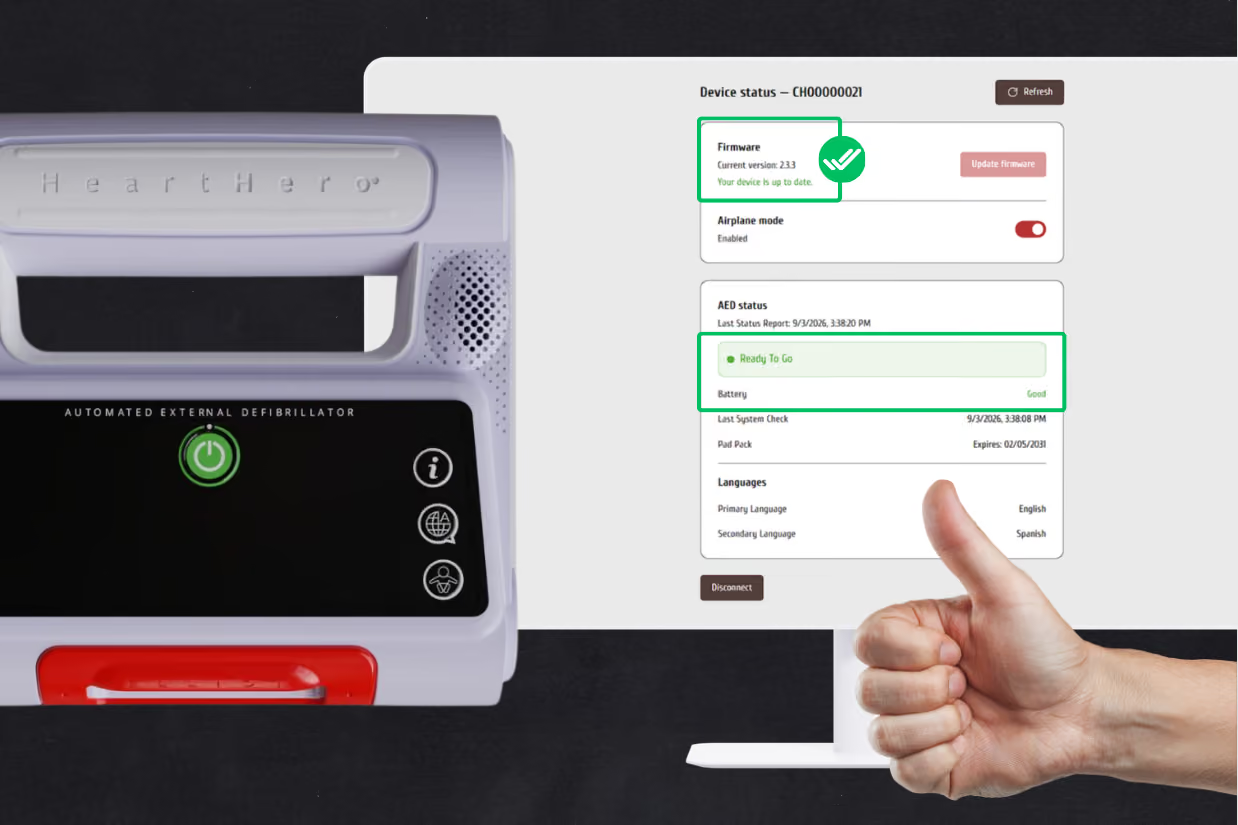
Update via Chrome browser
[ Questions?
Missions?
Let’s talk. ]
b.HOW TO INSTALL FIRMWARE ON CHROME BROWSER
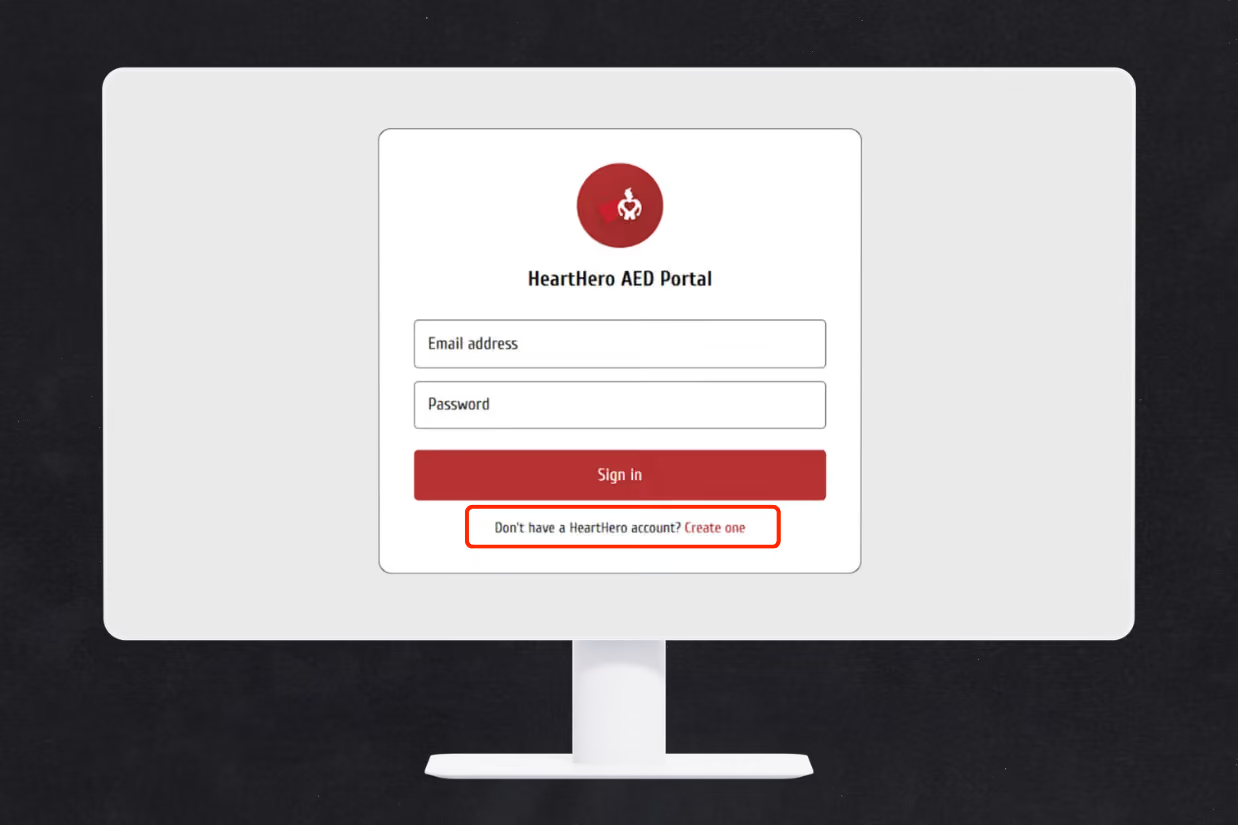
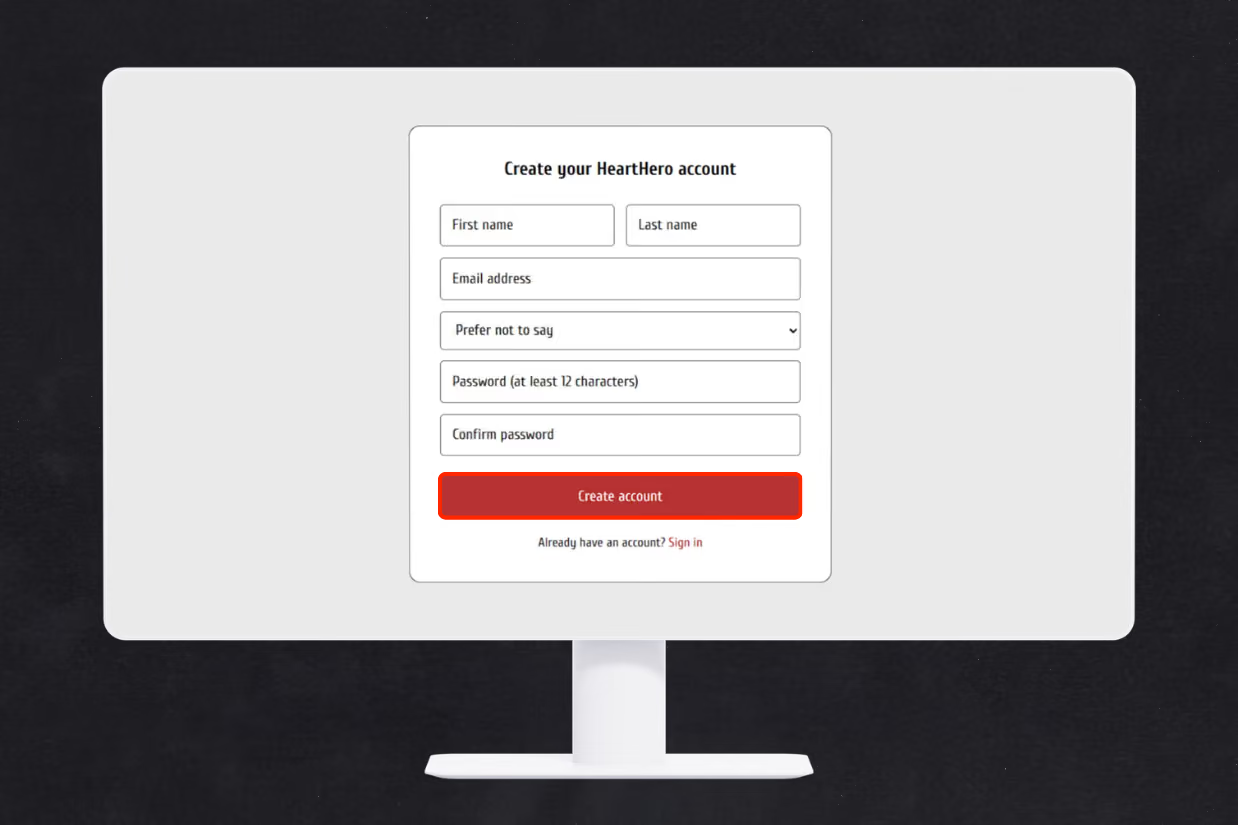
Sign In or Create a HeartHero Account. If you already have an account, enter your email and password and select Sign In. If you’re new to HeartHero, select “Create account” and enter the requested information.
After creating your account, HeartHero will send a 6-digit verification code to your email. Enter the code in the portal and select Verify Account. Once verified, sign in using your new account.
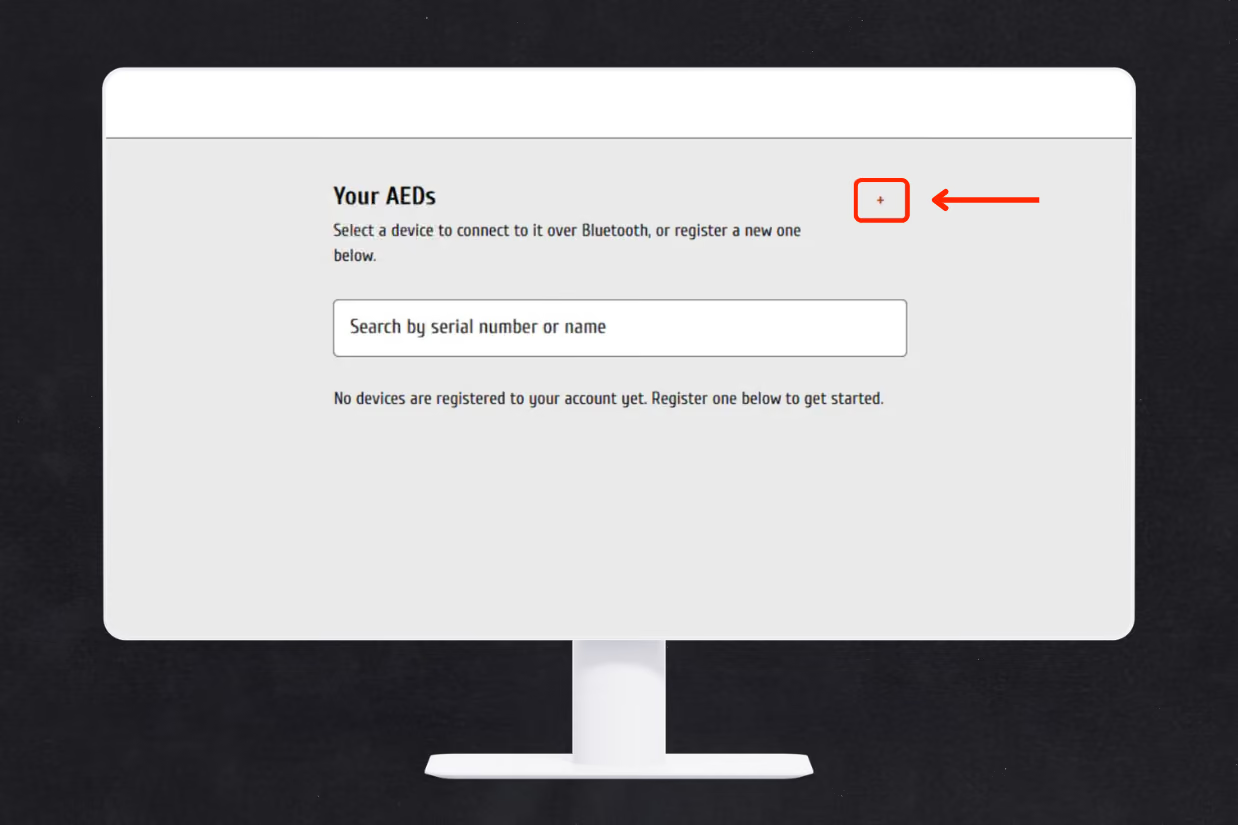
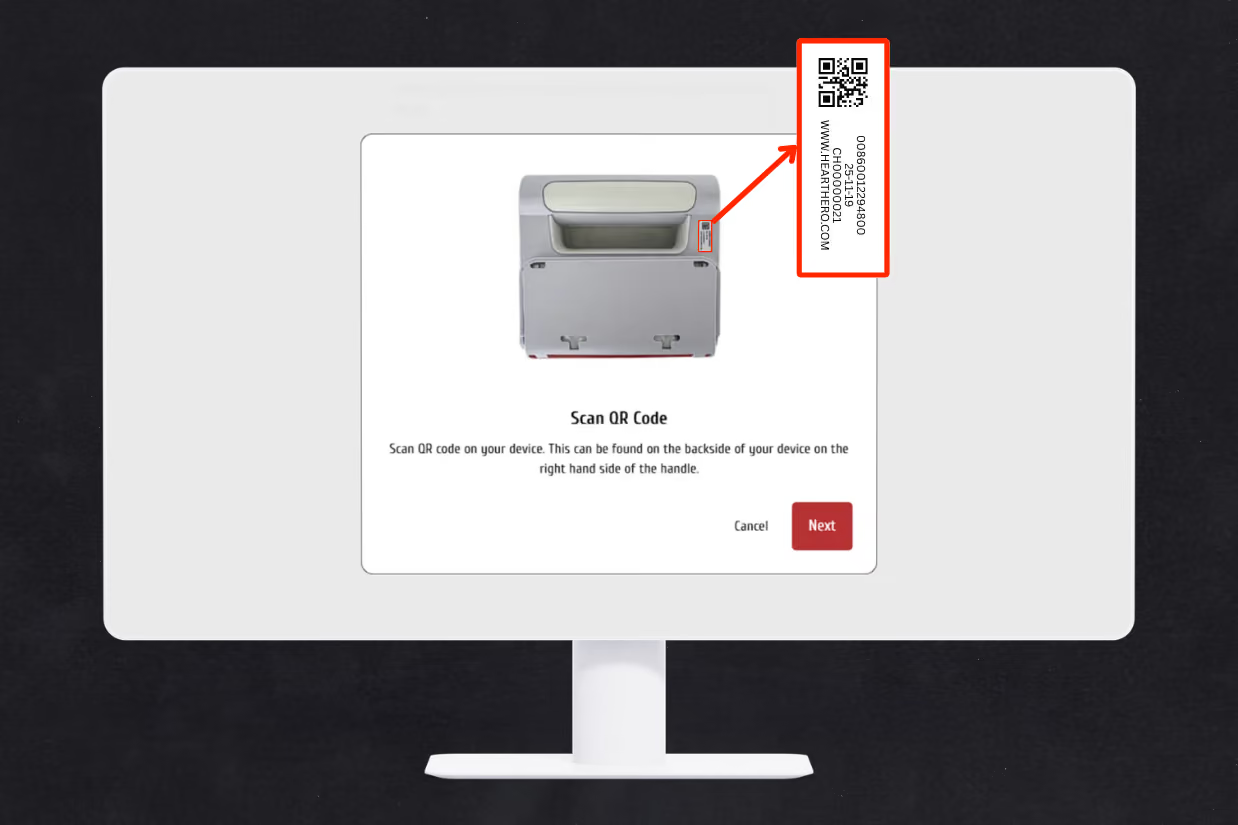
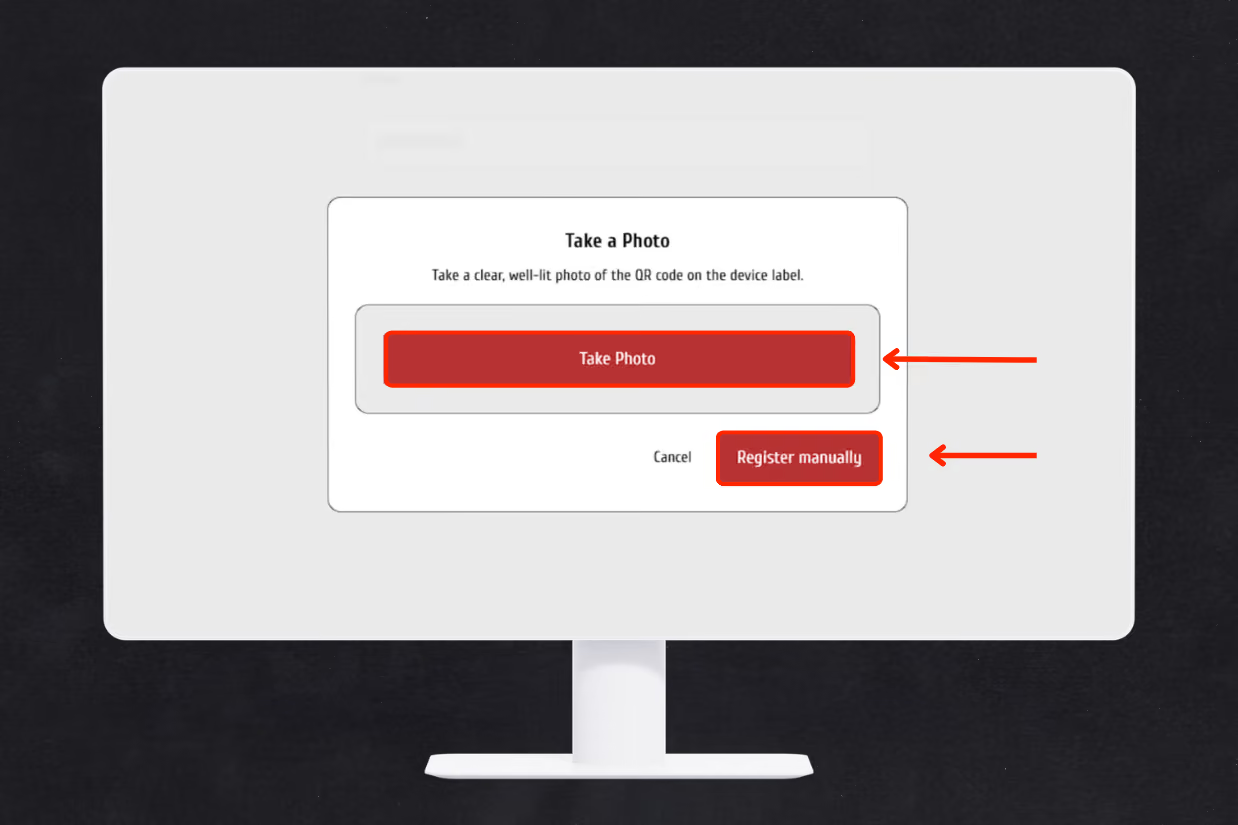
2. Add Your Elliot AED From the “Your AEDs” screen, select the + icon to register your device. Locate the QR code on the back of Elliot and follow the prompts to scan it.
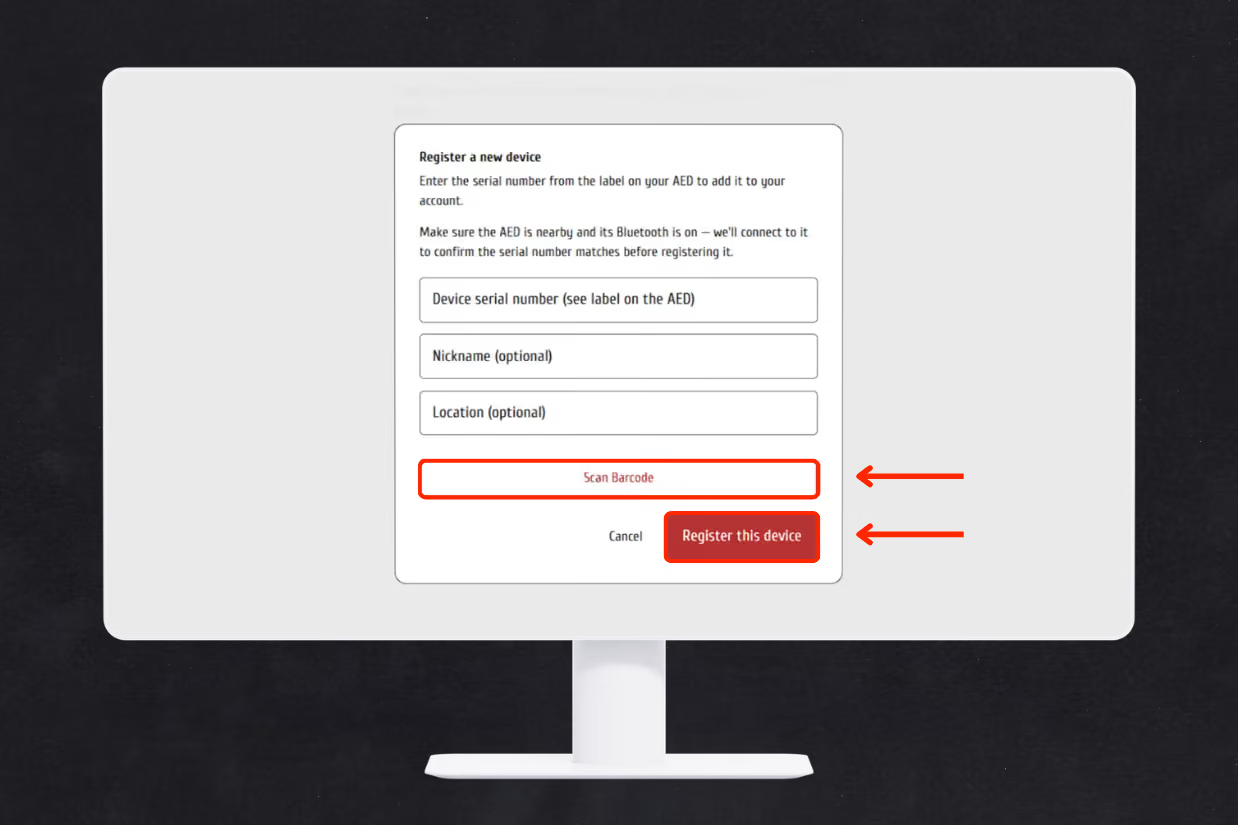
Can’t scan the QR code? Select Register manually, enter the serial number from the label on your Elliot AED, then select Register this device.
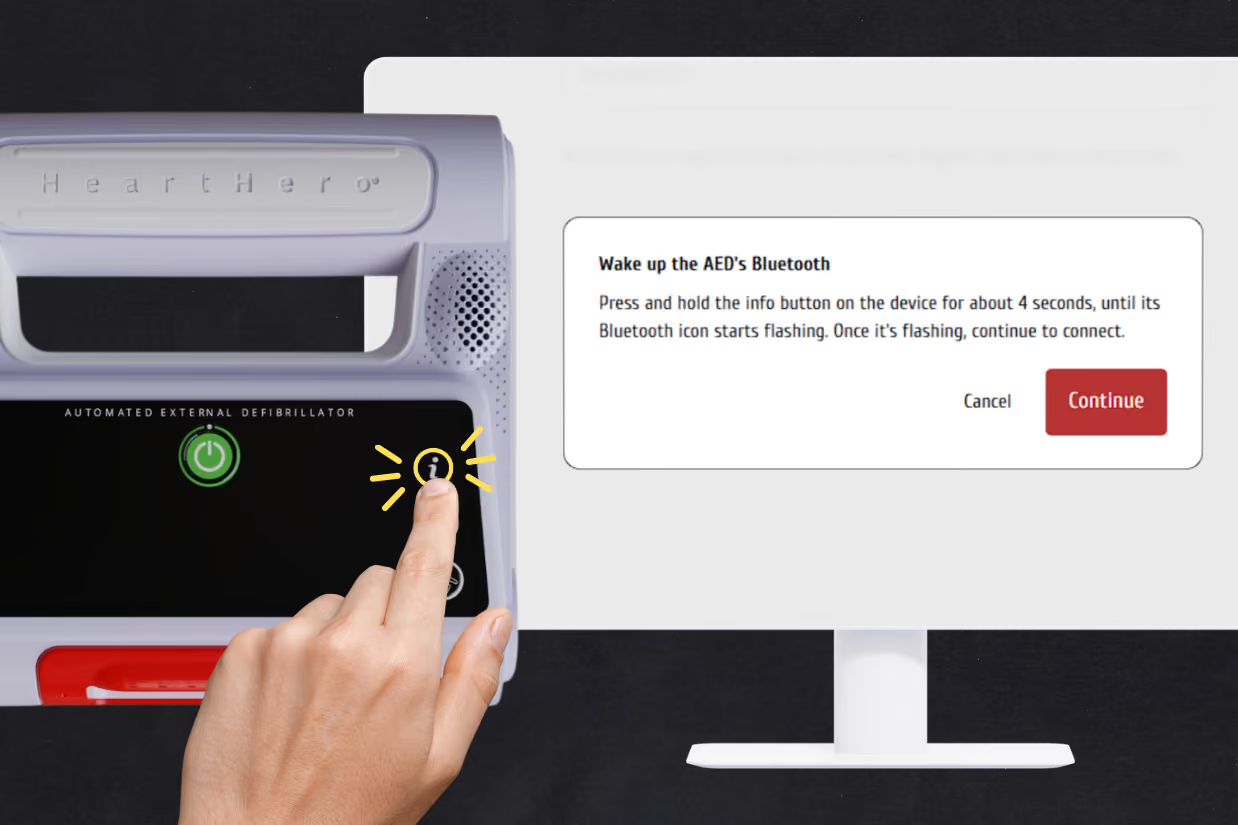
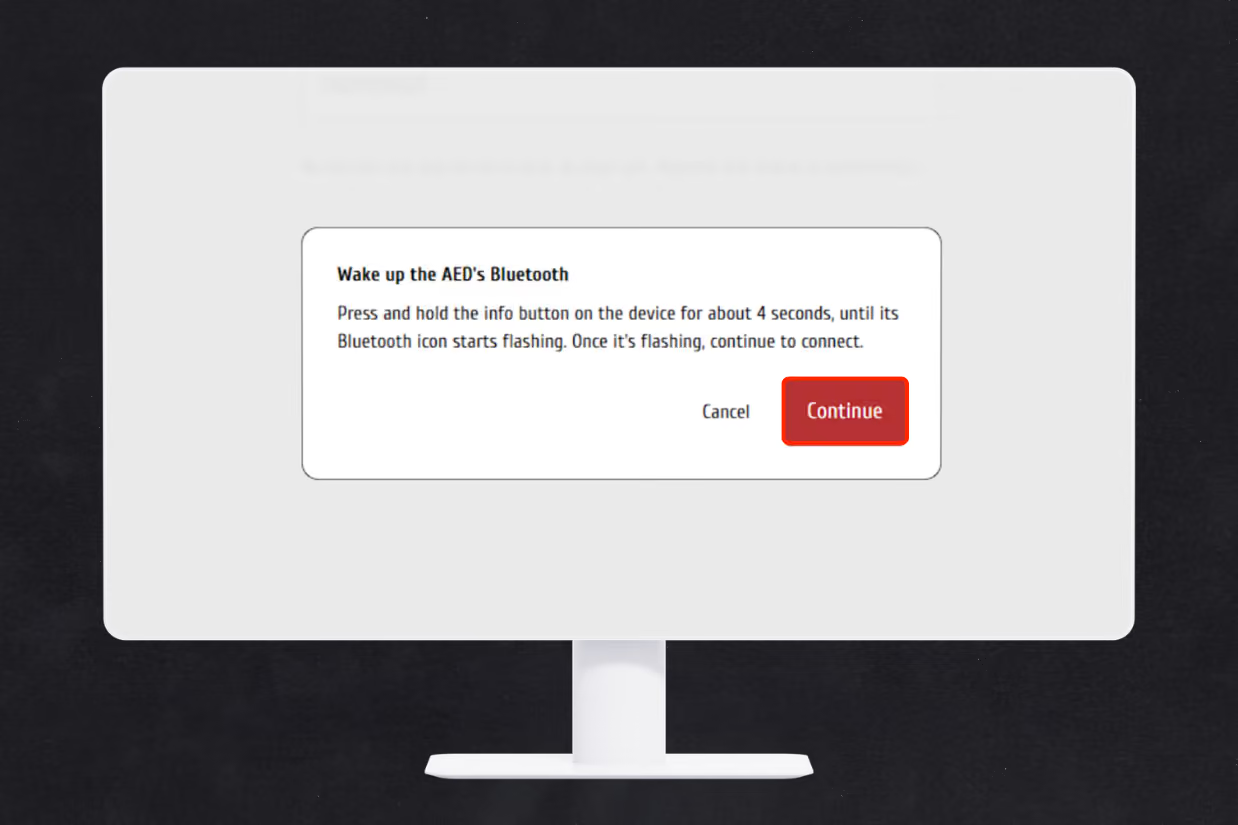
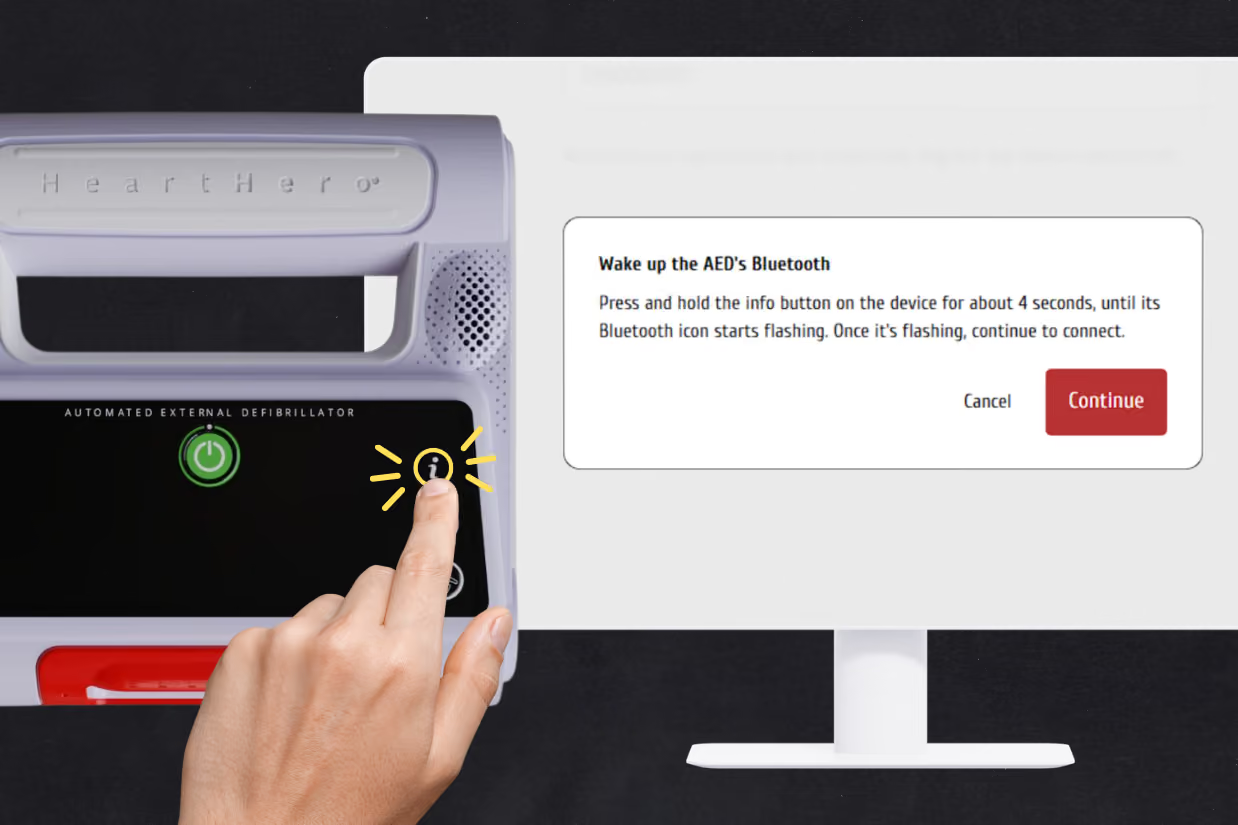
3. Press and hold the Info button on Elliot for about 4 seconds, until the Bluetooth icon begins flashing. Select “Continue”, then confirm the battery status shows Good and select “Continue” again to disable Airplane Mode.
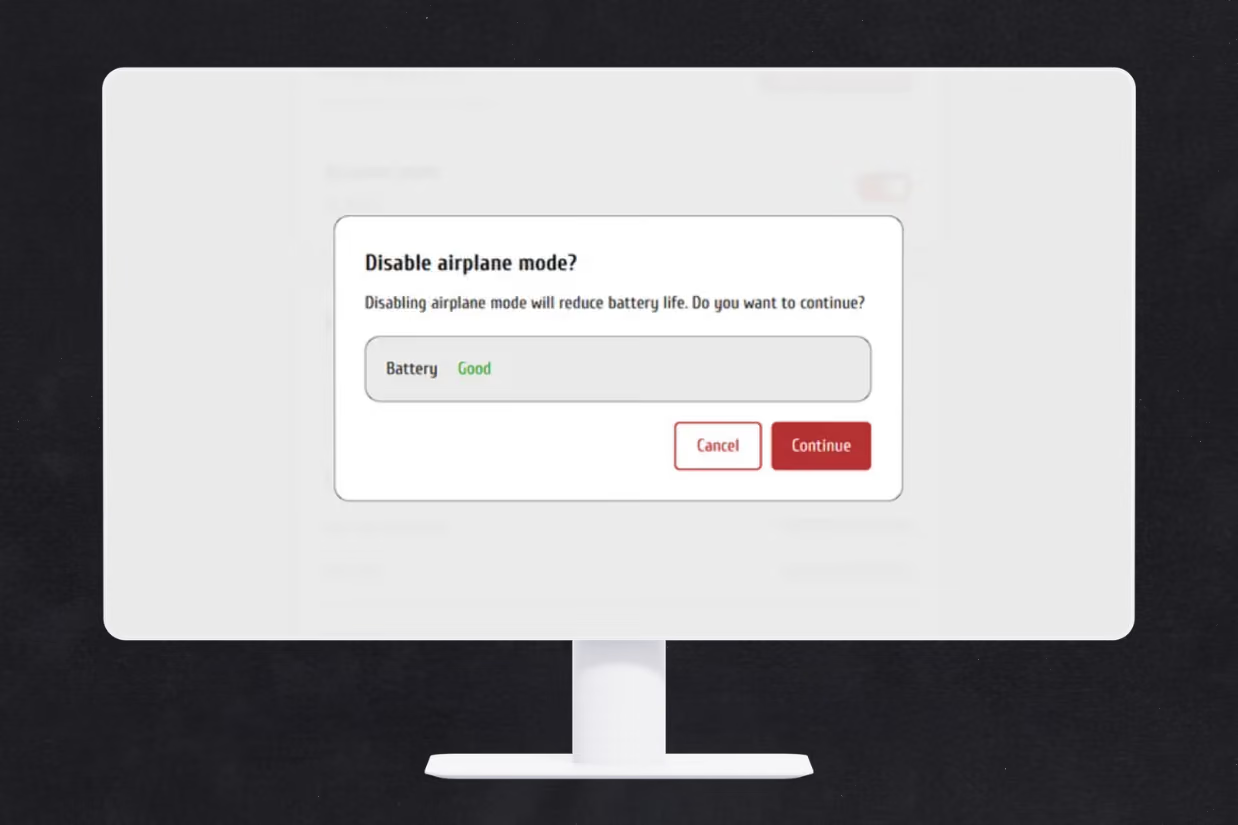
* Airplane Mode helps preserve battery life. Disabling Airplane Mode may reduce battery life.
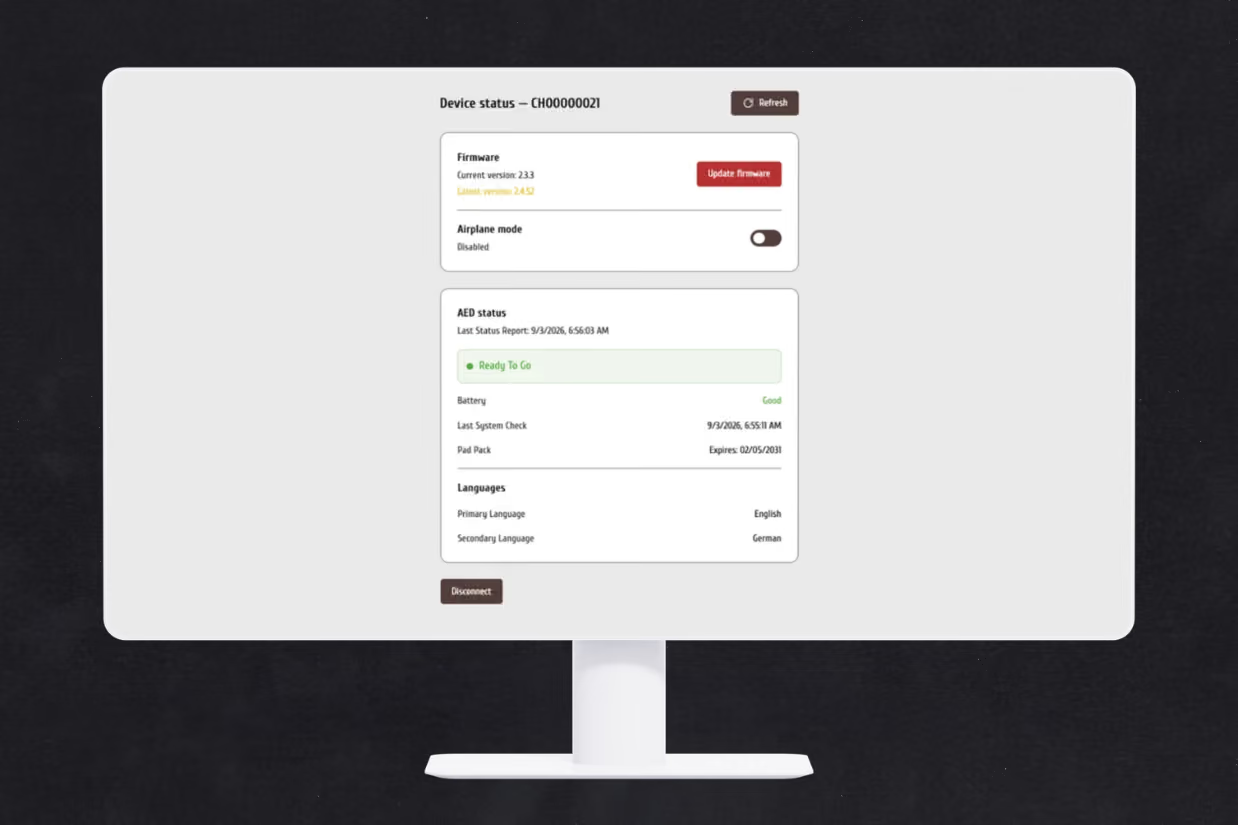
4. Select “Update firmware” to begin the update process. Press and hold the Info button on Elliot for about 4 seconds, until the Bluetooth icon begins flashing. Then, select “Continue”.
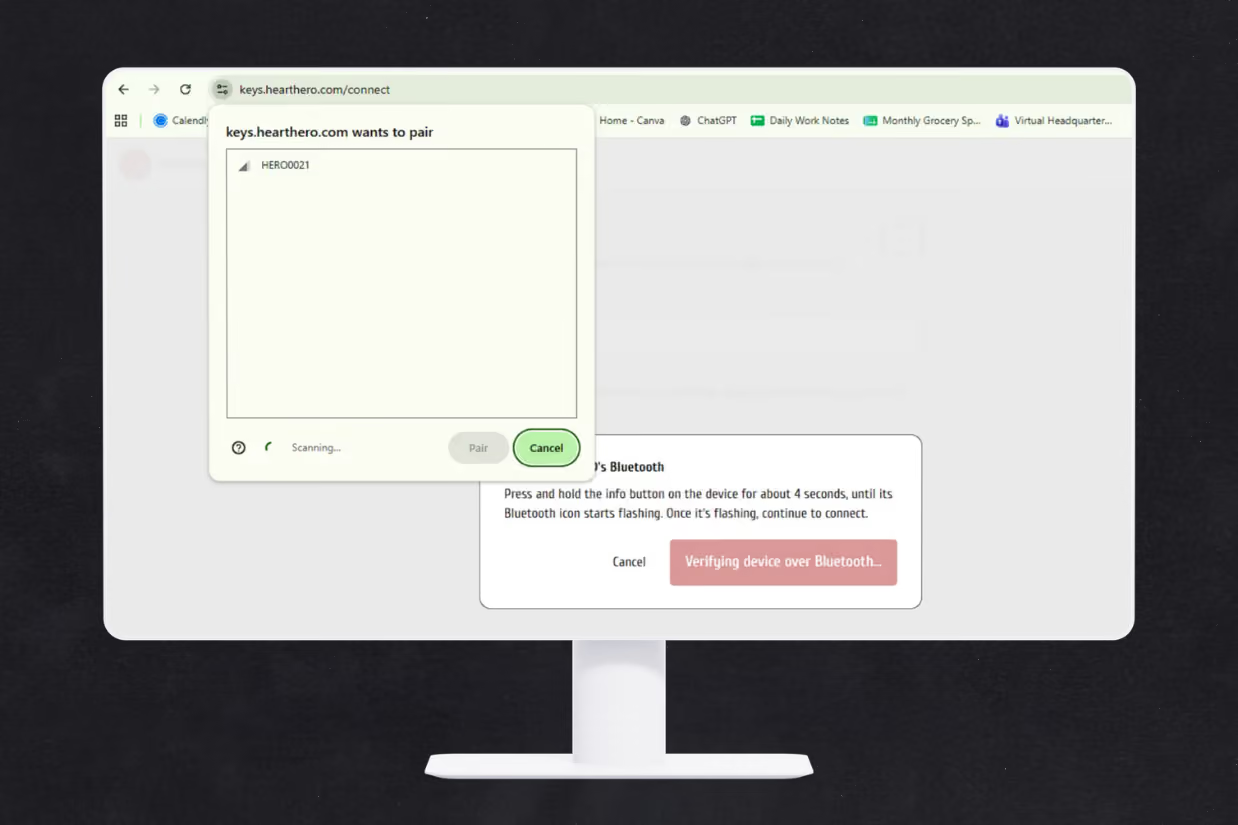
5. Select your Elliot AED when prompted to pair the device, then wait for the connection to complete.
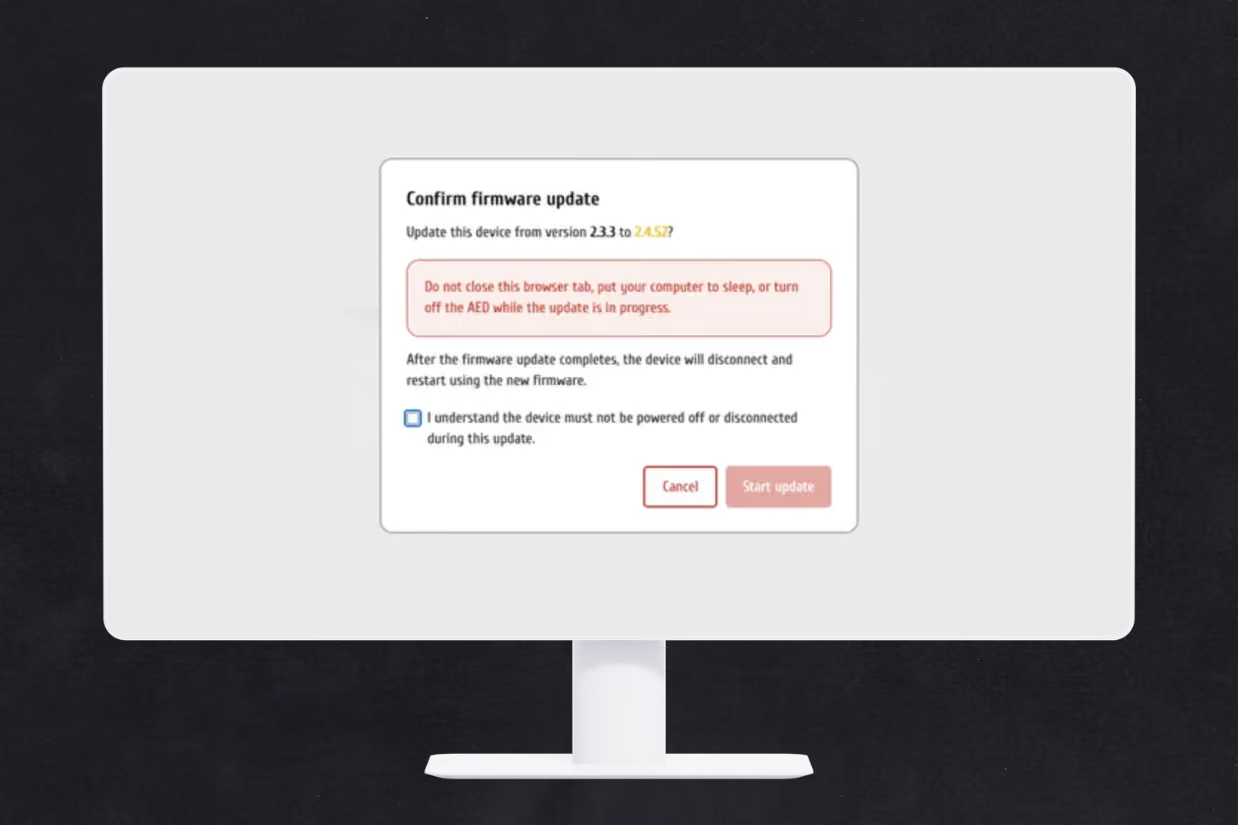
6. Select “Update firmware” again. Review and agree to the update requirements, then select “Start update”. A progress bar will appear while the firmware installs.
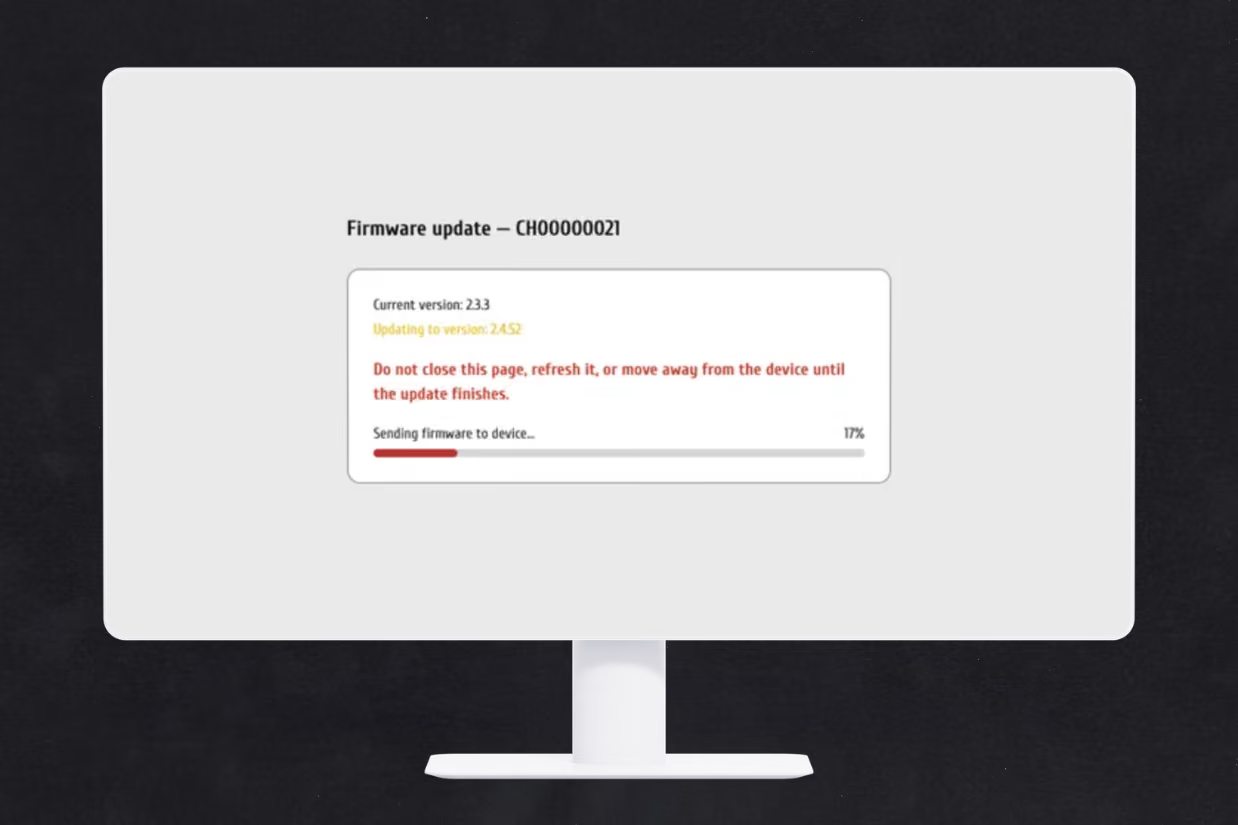
*Do not close or refresh the page, or move away from Elliot during the update. The process should only take a few minutes.
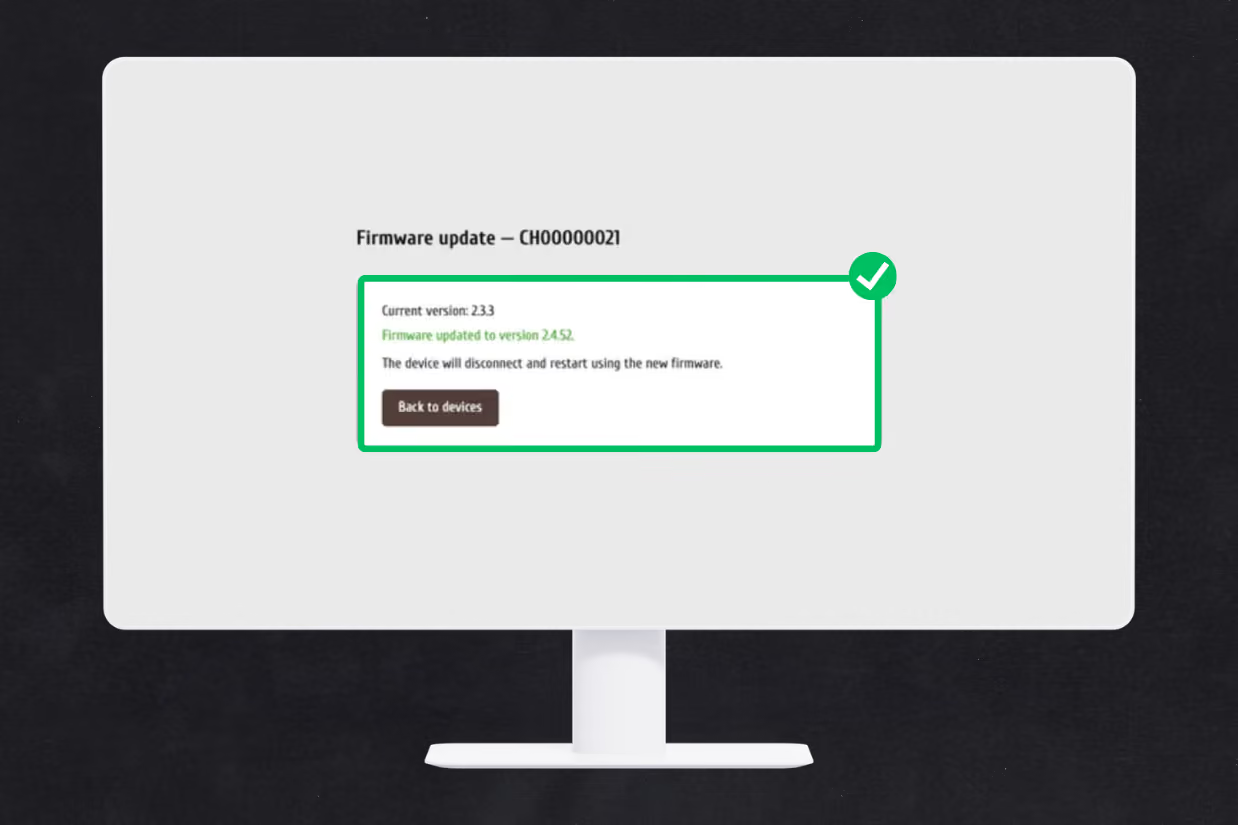
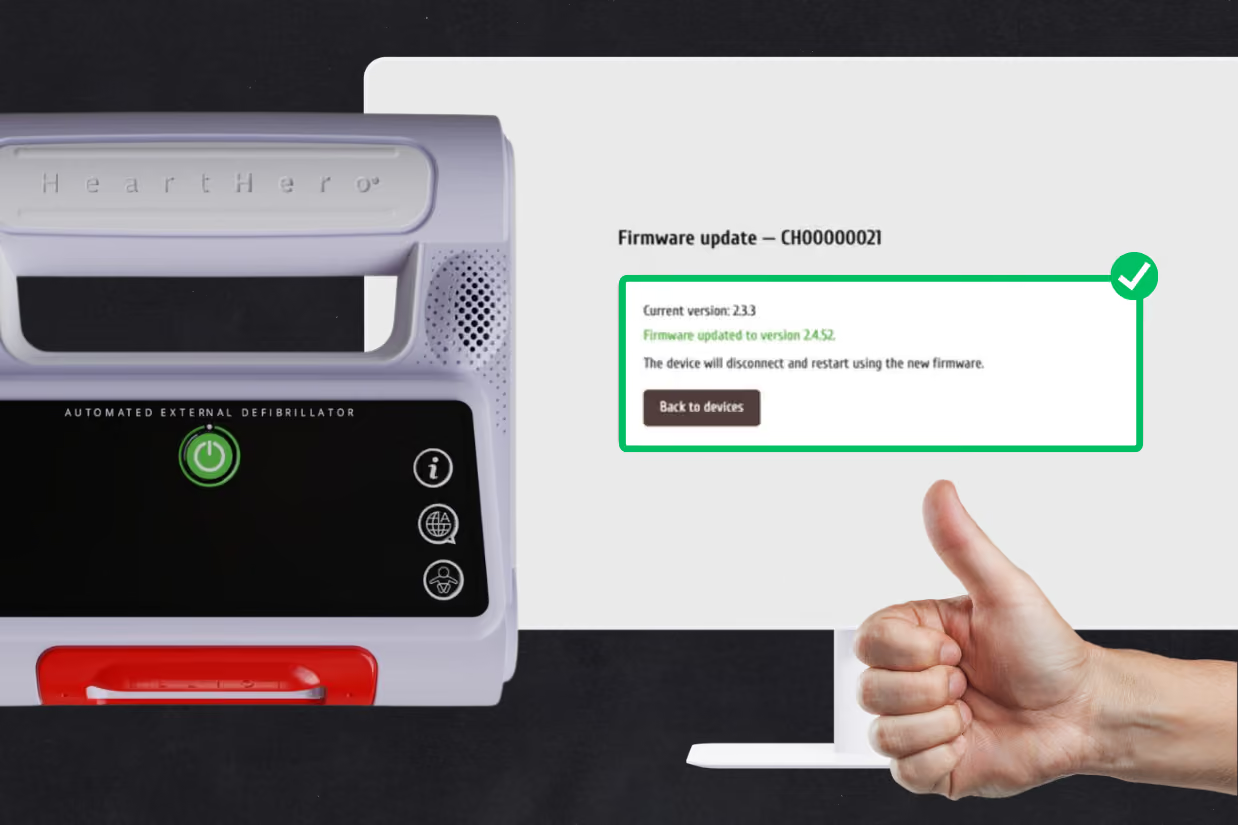
7. Once the update is complete, a confirmation message will appear. Click “Back to Devices” to confirm.
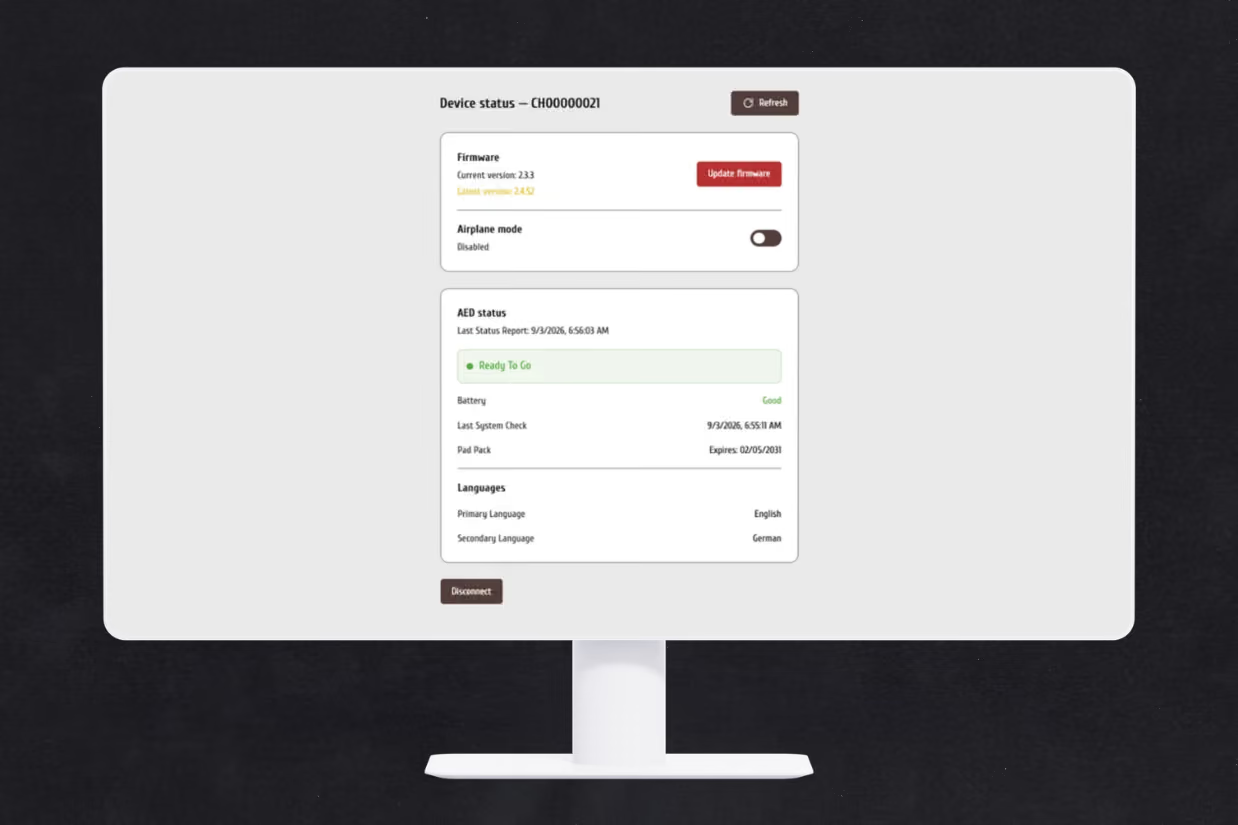
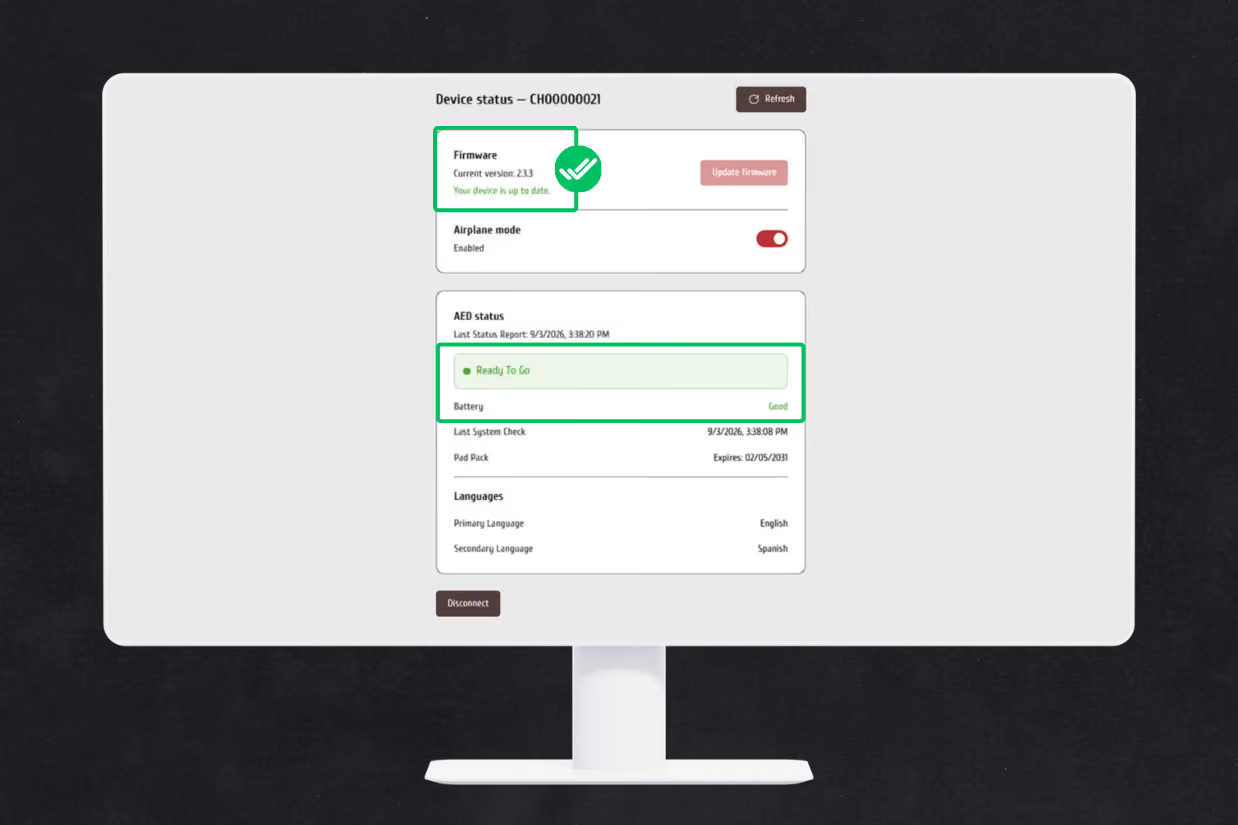
8.To double-check that the update was successful, confirm the firmware version now reads “X.X.X” and the button says “Firmware is up to date.” Once confirmed, select “Disconnect” and sign out of the HeartHero AED Portal. You’re all set!
C. UNABLE TO COMPLETE THE UPDATE
If you’re unable to complete the firmware update using either the iOS or Chrome option, please contact your distributor or the company from which you purchased your Elliot AED. They will assist with arranging a replacement device and the return of your current unit.