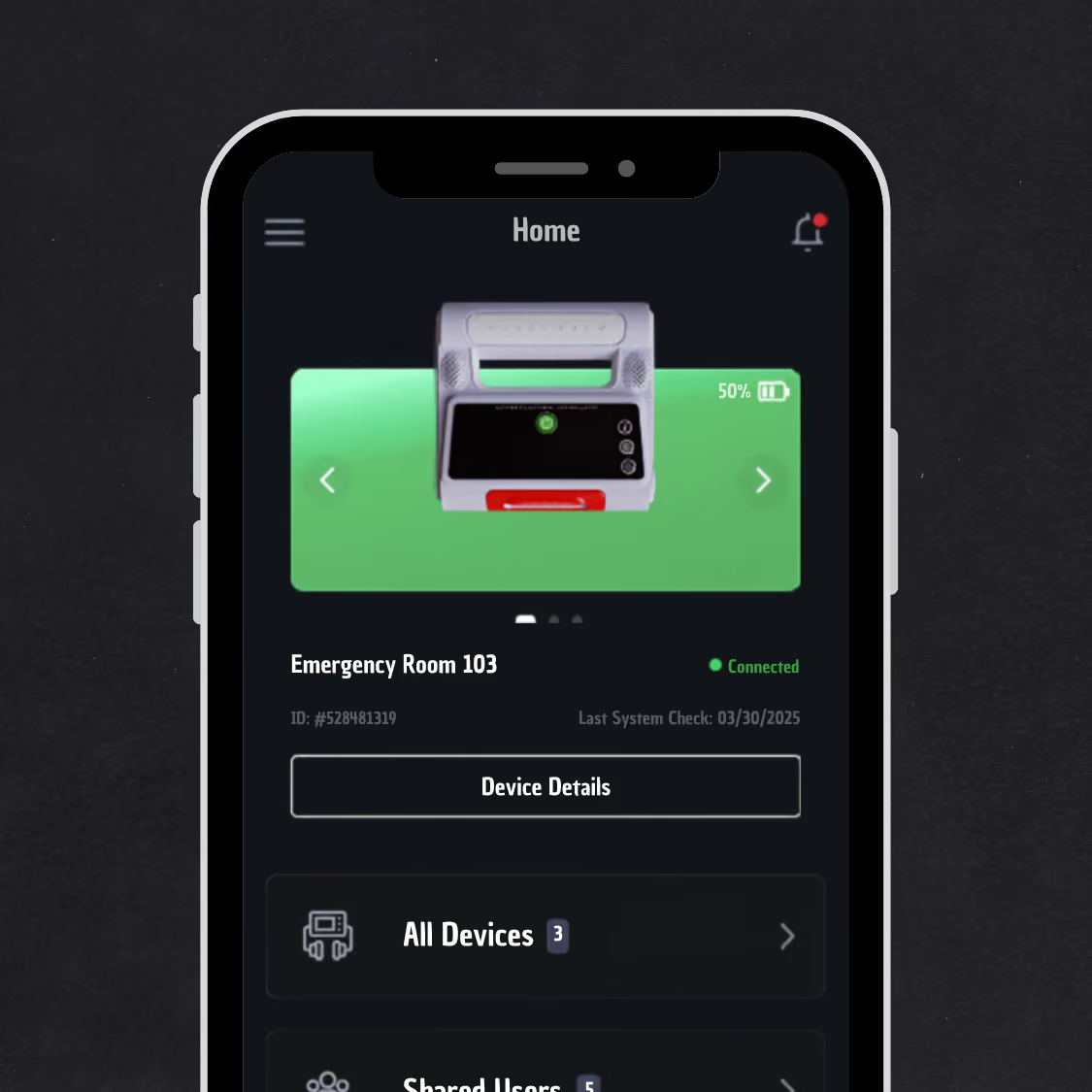
Update via iOS app

[ Questions?
Missions?
Let’s talk. ]

a.HOW TO INSTALL FIRMWARE ON IOS

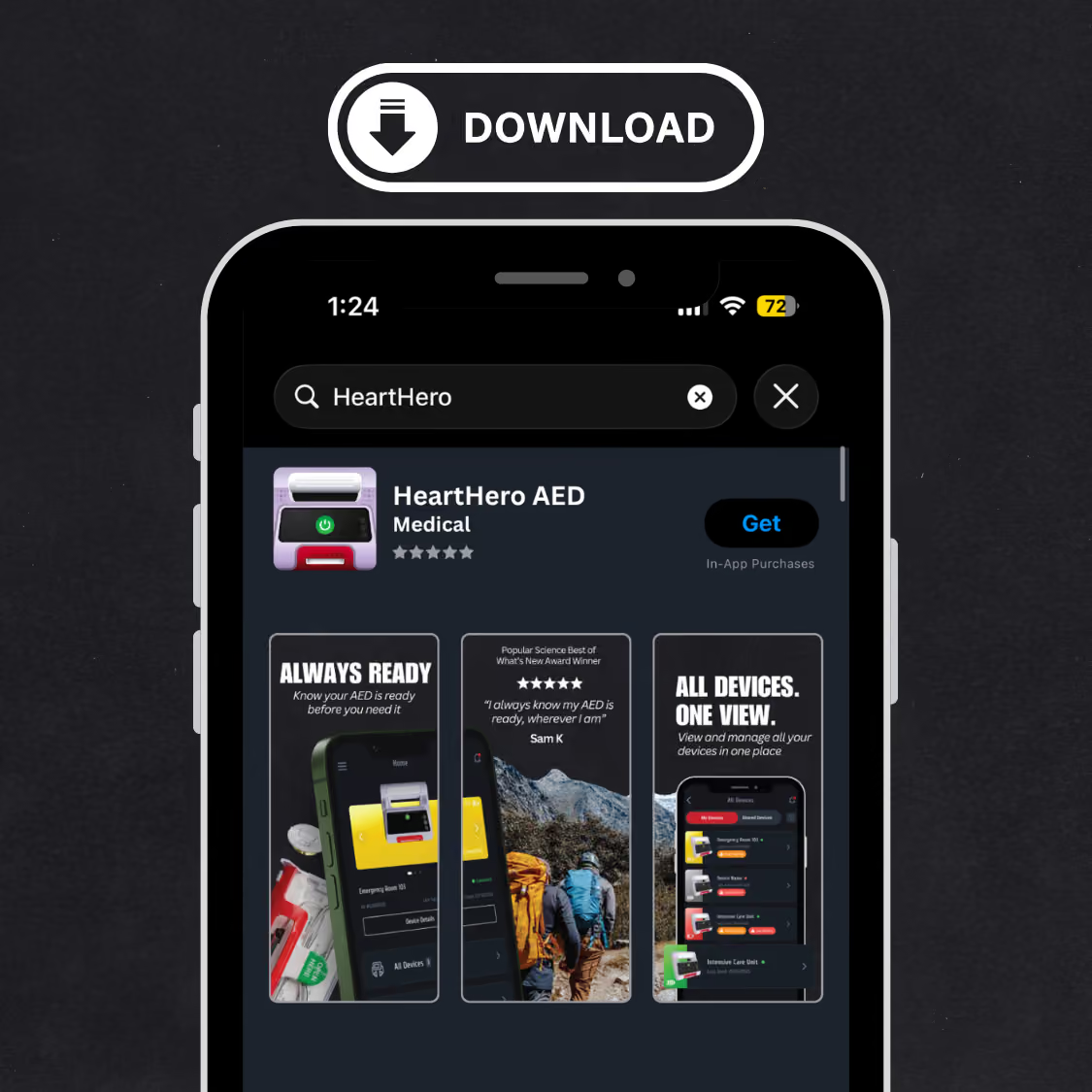
1.Open the HeartHero app on your iPhone. Don't have it yet? Download it from the App Store first.

*If you do not have an iPhone: Please ask to borrow an iPhone from a friend, family member, coworker, or another trusted person. You do not need to own an iPhone to complete these steps. Simply download the HeartHero App on a compatible iPhone, connect to your AED, and complete the necessary steps. If you are using someone else’s phone, feel free to delete the app once the update is complete.
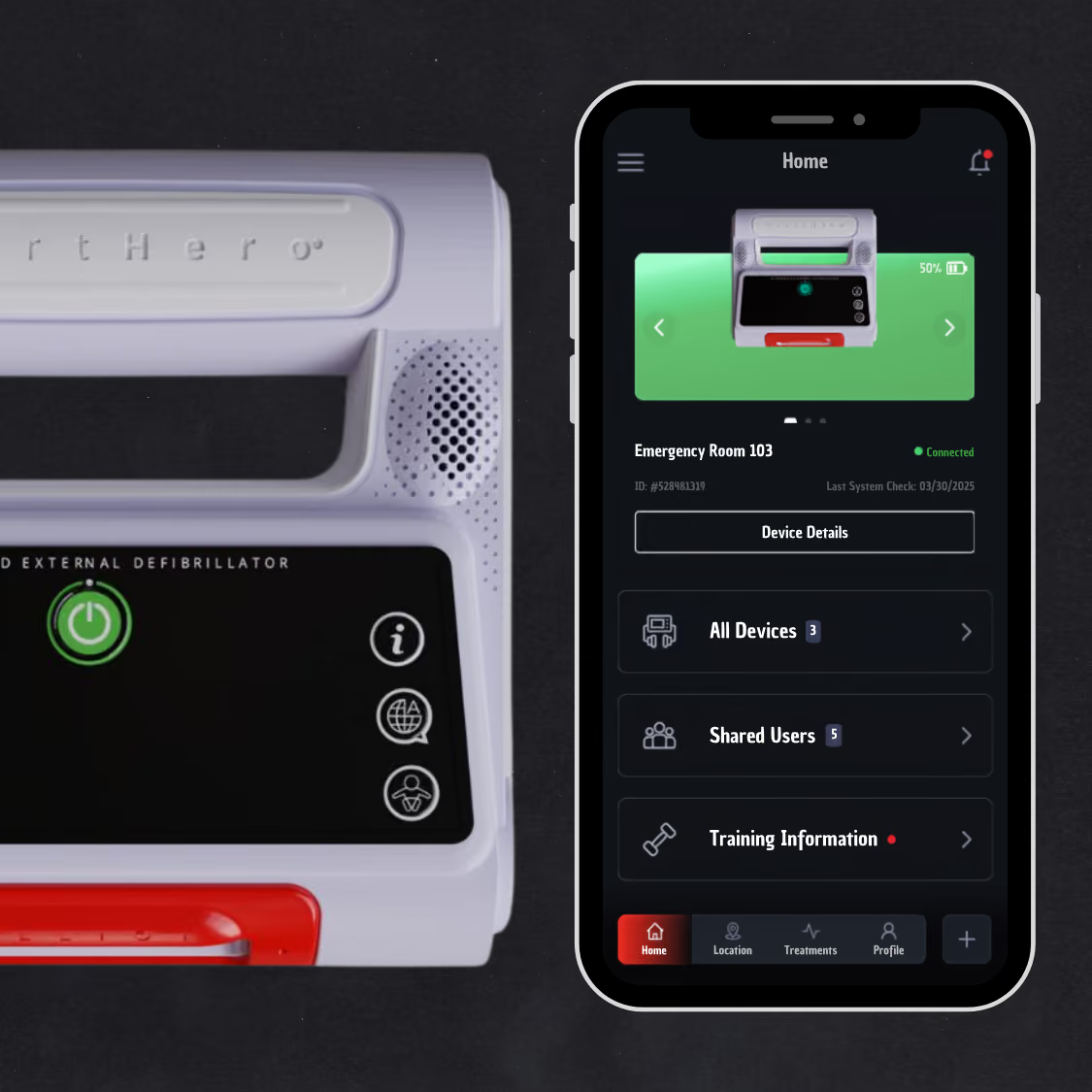
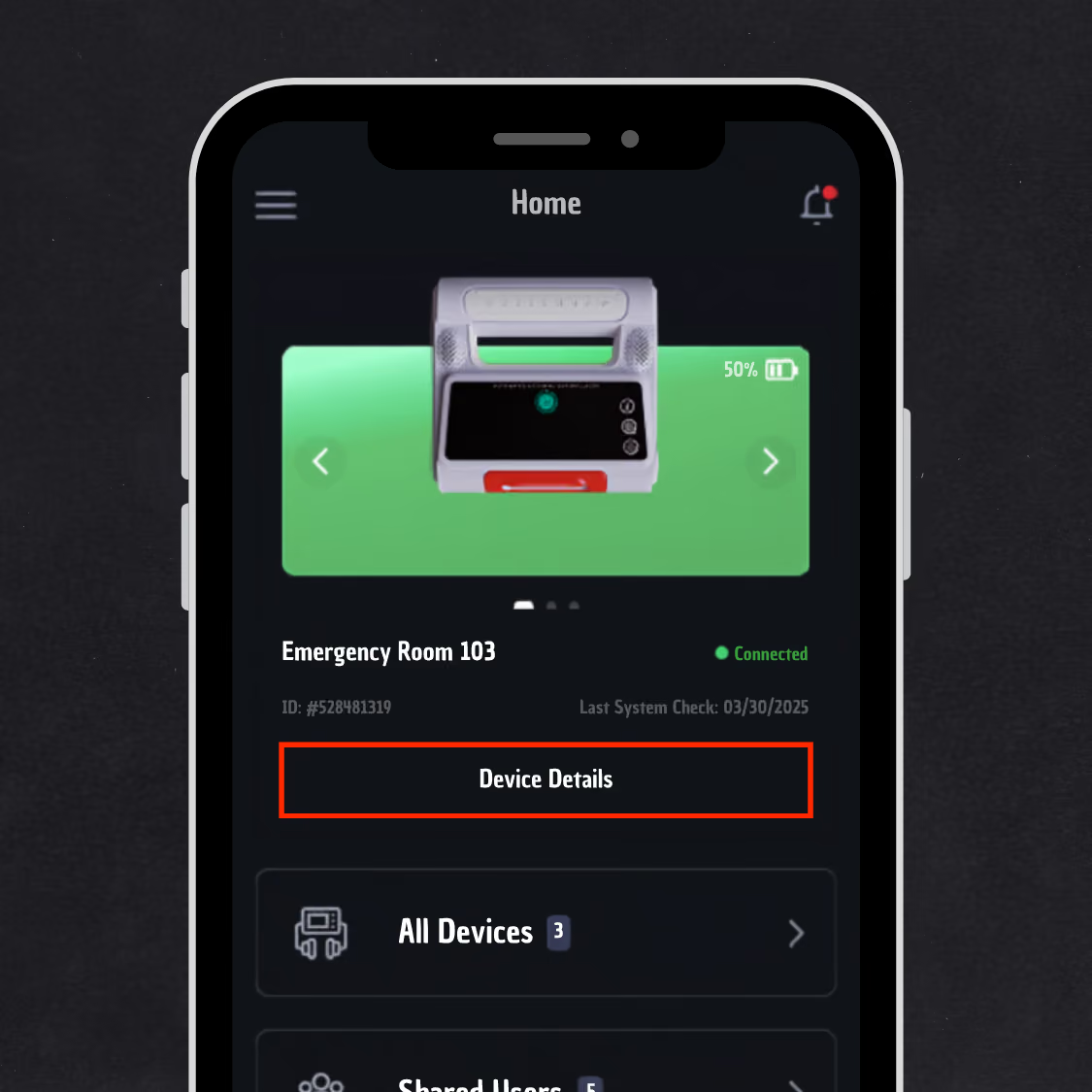
2. Bring your phone within Bluetooth range of Elliot and tap "Device Details" to begin connecting.
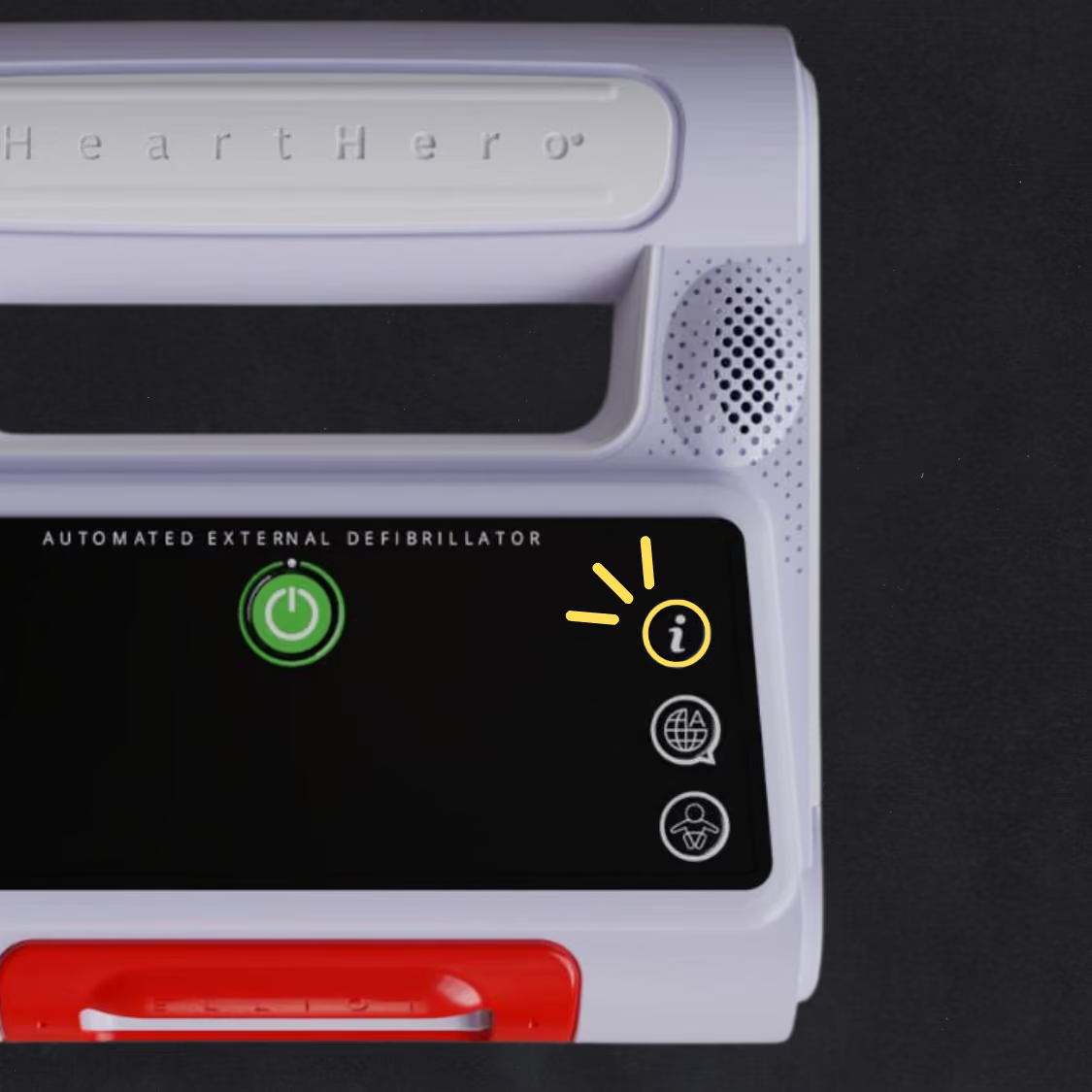
3. Press and hold the Info button on Elliot until the Bluetooth icon begins flashing.
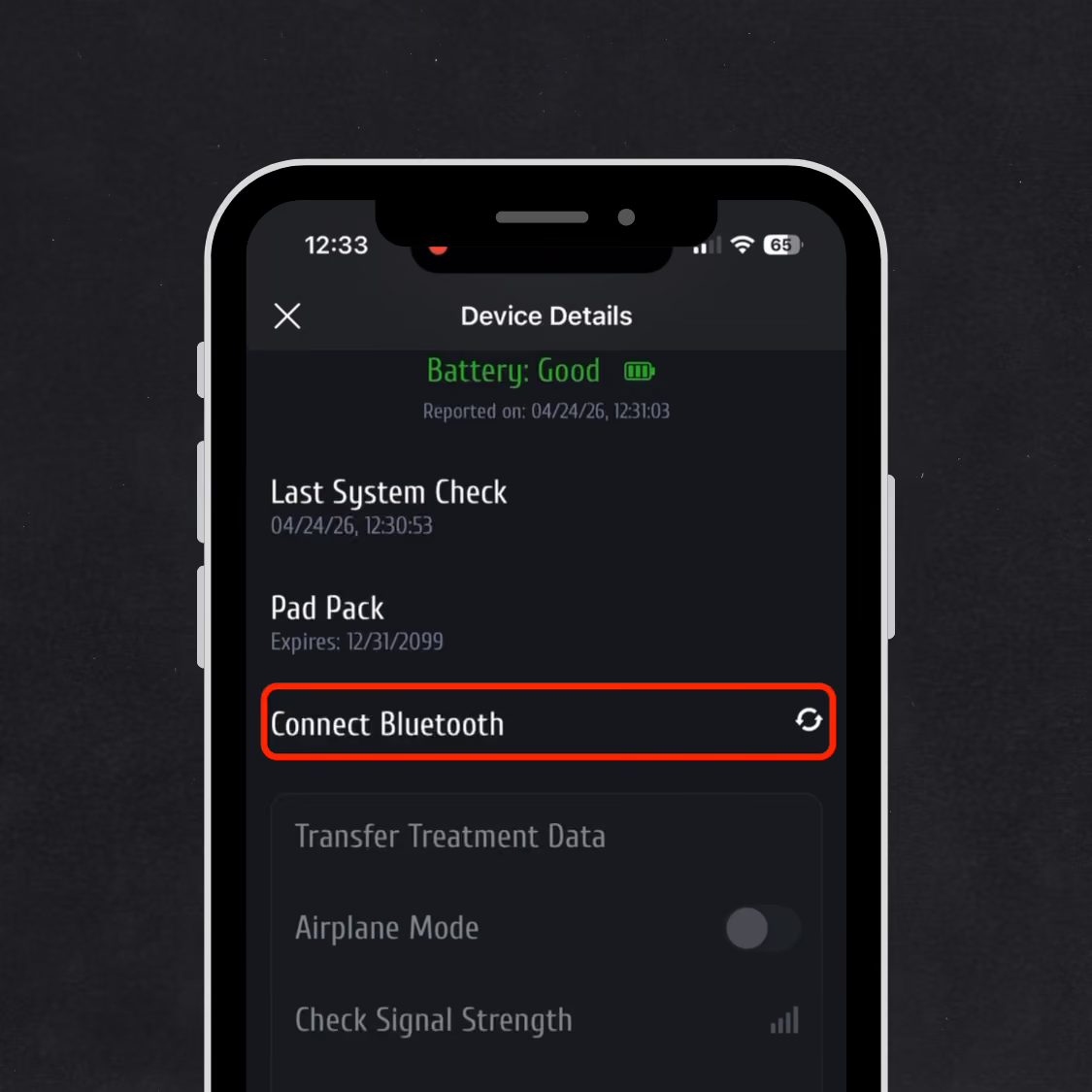
4. Tap "Connect Bluetooth"
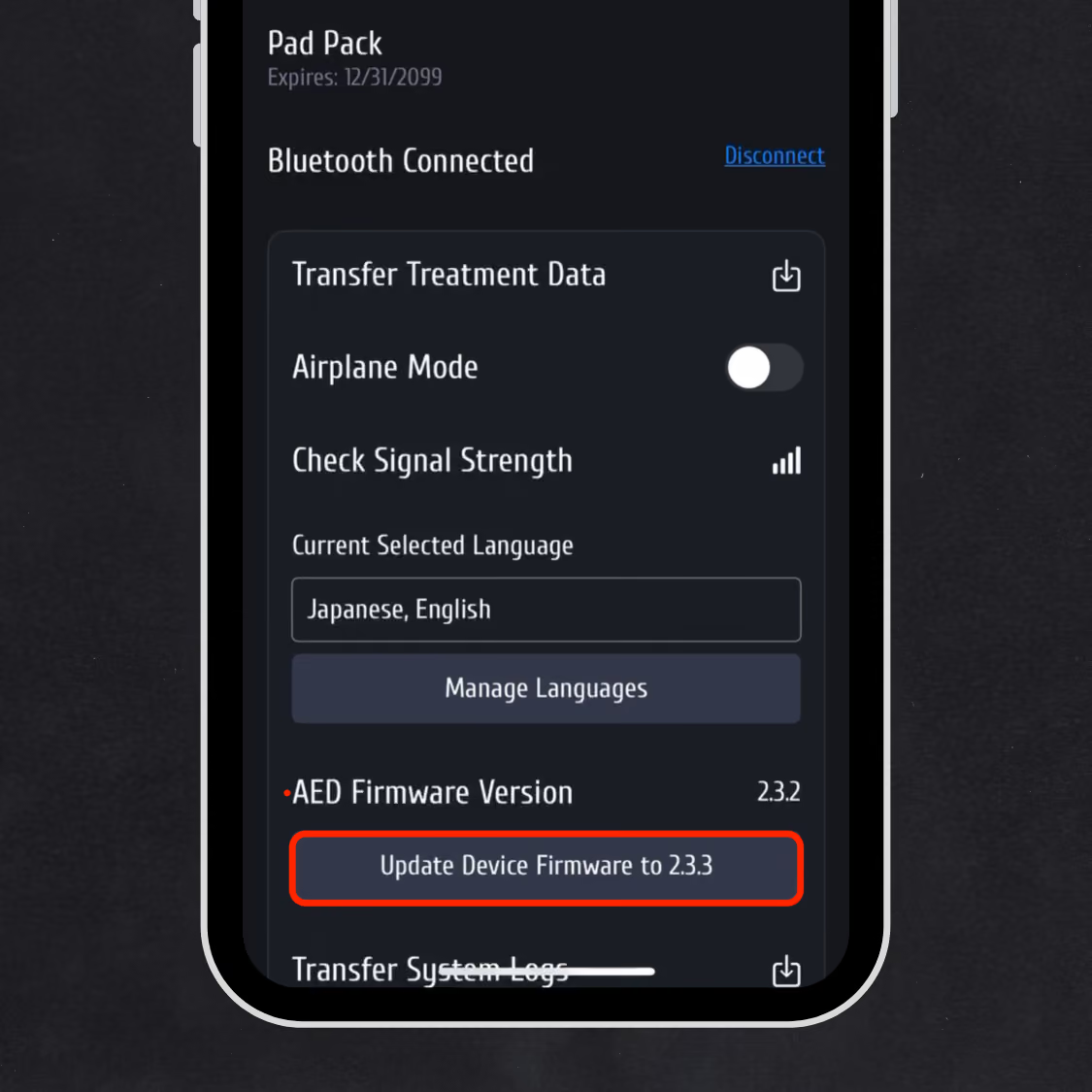
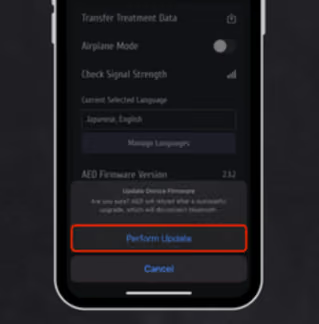
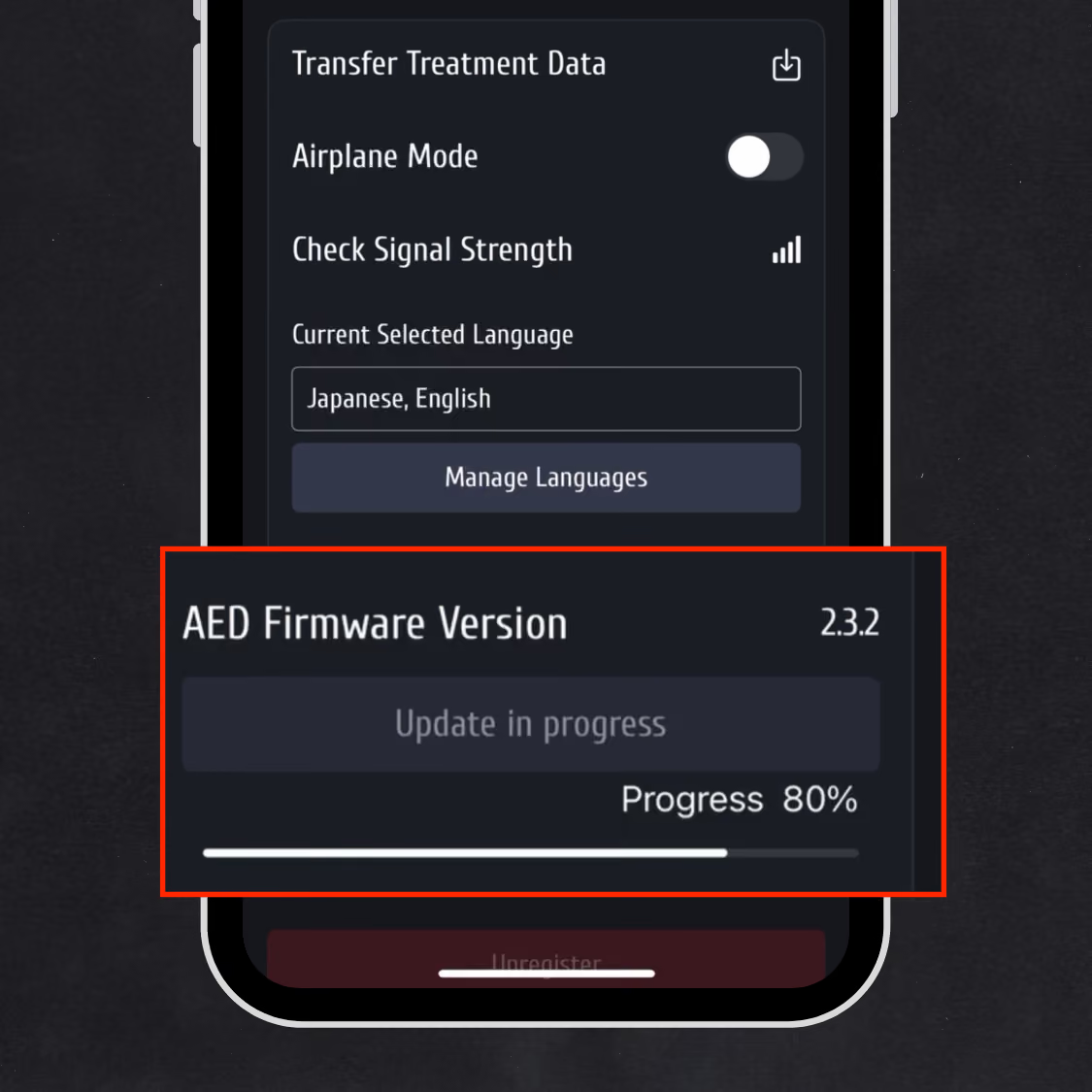
5. Tap "Update Device Firmware to 2.3.3" When prompted, tap "Perform Update" to begin the installation. A progress bar will appear while the update is in progress.
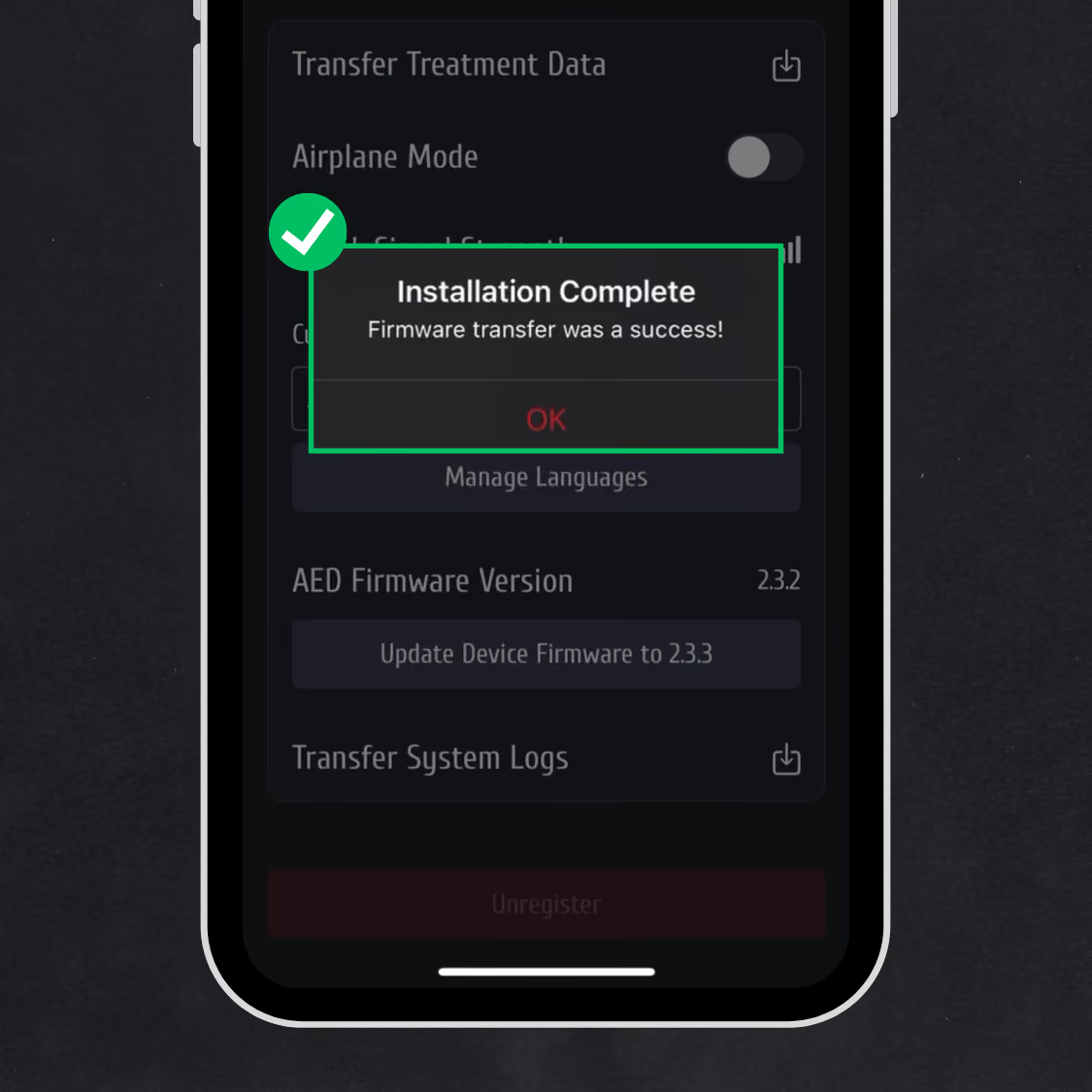
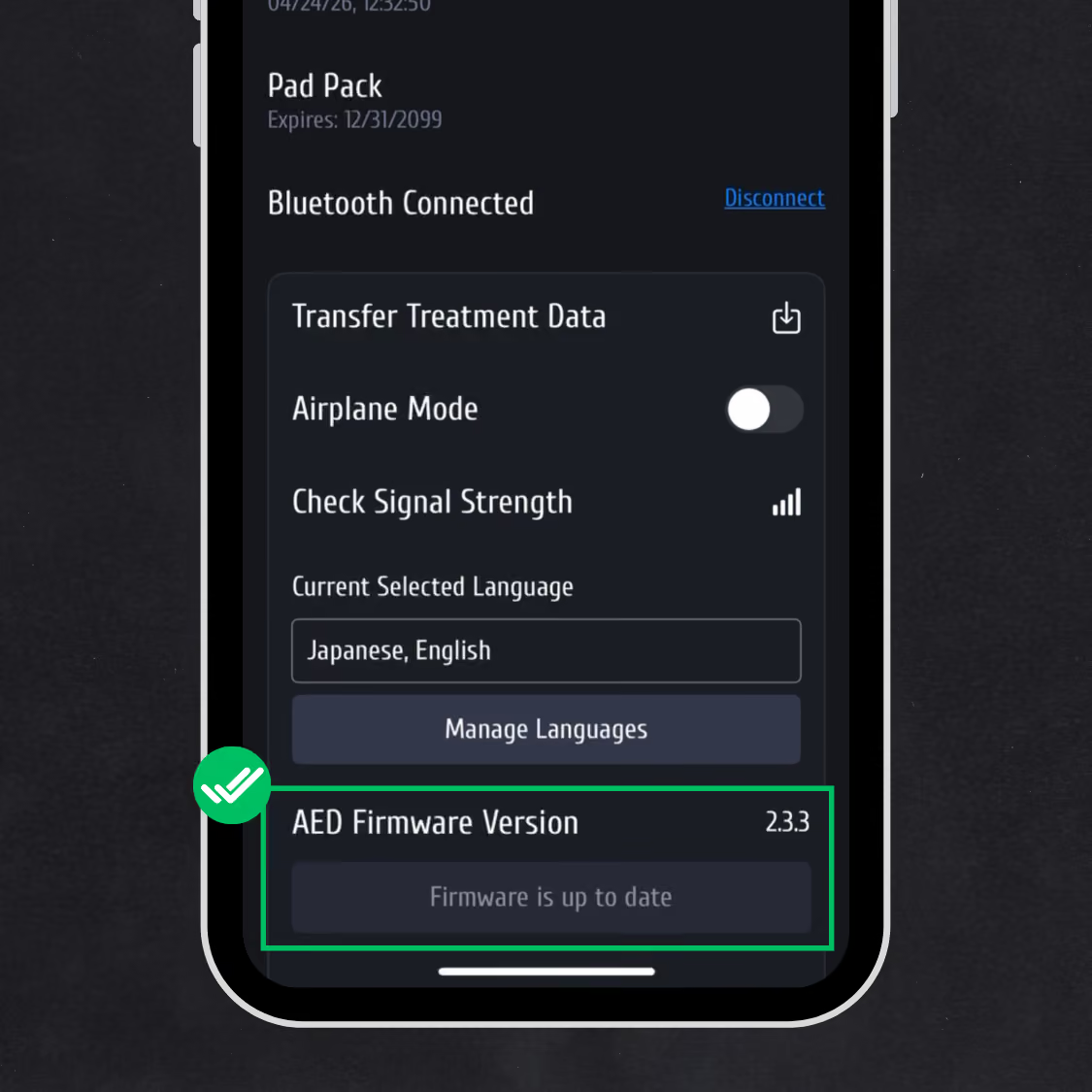
6. Installation is complete! To double-check that the update was successful, make sure the firmware version now reads 2.3.3. and the button says "Firmware is up to date." Elliot will automatically disconnect from Bluetooth, restart, and run a self-check. You're all set!